
Run and save
Control lighting, save your room and keep a backup.
On this page
Your saved room is a plan, not permission to control a strip. Each launch starts with lighting disabled, even when LedAlert restores a finished setup and connects to WLED read-only.
Choose whether to enable real lighting
Stay with local rule demos to explore without hardware permission. When you want physical output:
- Confirm the WLED address, reported LED count, strip route and rule destinations. Use a trusted LAN; stop other realtime controllers through their own controls.
- Check Settings → Integration status. The session must be observed as unlocked, Quiet mode must be off and the setup must be valid.
- Set a low Strip → Alert brightness. This caps RGB data, not measured power or light output; WLED's own current limit still matters.
- Select Enable lighting. This session-only permission also makes Demo rule, Demo all and toolbar Preview drive the real strip.
- Start a fresh demo to see the result: changing lighting enablement clears existing demos and active notification records.
Try examples is always local-only. Guide with real lights → Take control grants separate, temporary permission for mapping the entire strip. It suspends normal alerts and does not automatically re-enable them afterward. Read physical LED guidance before using it.
Disable lighting stops normal output and asks an acquired device to leave realtime mode. WLED decides what resumes: release does not guarantee darkness or restoration of an earlier effect.
Understand pauses and resets
| Event | What to expect |
|---|---|
| Valid same-device edit, selection or undo/redo | Your current lighting choice stays in effect. Editing does not automatically disarm output. |
| Invalid draft, Quiet mode, session lock or unavailable/stale lock state | Output pauses, retaining the enablement choice. Resolving the condition can resume eligible output. New notifications received while paused are discarded. |
| Device address or LED count changes | Output is disarmed. Review the device and allocation before granting permission again. |
| Edit, inhibition, fault or guidance stops a demo | The demo does not restart automatically. |
| Notification observation is lost or its daemon restarts | Tracked persistent lights clear and are not reconstructed. |
| LedAlert restarts | Lighting permission, guidance, demos, notification records and undo steps are not restored. |
Existing persistent notifications can resume after lock/quiet inhibition. Popup timeout alone does not clear them: desktop closure/dismissal or LedAlert's local Dismiss ends the light. Local dismissal does not dismiss the desktop notification.
If output fails, do not repeatedly attempt acquisition after uncertain release. A read-only observation must establish that the previous device is no longer live. Crash, network loss and forced termination rely on WLED's existing realtime timeout; LedAlert does not change it or guarantee a recovery interval.
Save, finish and return
- Save or Ctrl+S writes a valid configuration. Invalid settings cannot overwrite the last valid save.
- Finish saves and hides the sidebar. It does not enable lighting. Select a top tab to edit again.
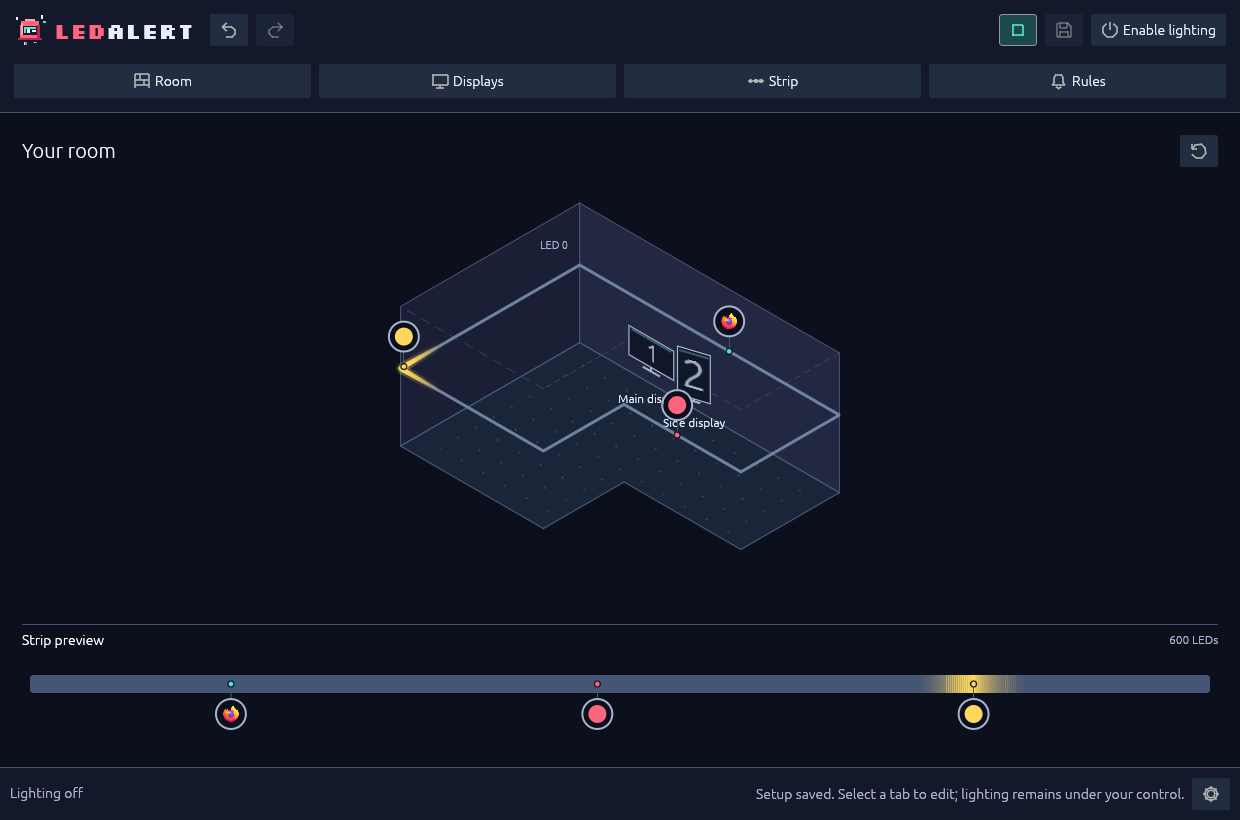
- The finished view places application markers at their LED anchors; overlapping markers show a count and an inspectable application list.
- Settings → Replay setup guide replays the guide without clearing your setup.
On later launches, an eligible saved target is checked read-only with lighting off. Failure opens Strip with the error and a retry action.
Minimize, close or reduce motion
Minimize keeps notification and inhibition processing running. Close stops LedAlert, offering save/discard/cancel for unsaved changes. There is no hidden daemon, tray-only mode or automatic startup installation.
In Settings:
- Reduced motion replaces fades/ripples with steady indications and stops decorative movement, without changing notification lifetime.
- Hide tooltips hides hover explanations; icon buttons keep accessible names.
- Hide demo content hides examples and stops demo playback.
These preferences survive restart.
Undo and redo
Undo / Redo and Ctrl+Z / Ctrl+Shift+Z cover room, strip, rules, settings and the address draft, up to 64 steps. Drags and continuous edits are grouped. A new edit after undo starts a new branch; no-op edits keep redo available.
Text fields keep native shortcuts. Leave the field or use toolbar controls for whole-editor undo. Camera orbit is not a configuration edit.
Undo/redo never grants permission or restores quiet/lock state or notification records. Same-device changes preserve current connection and enablement; a target change disarms output. Guidance always ends on undo/redo.
Find and back up your setup
The default configuration is $XDG_CONFIG_HOME/ledalert/config.json, or ~/.config/ledalert/config.json when XDG_CONFIG_HOME is unset. The preferences sibling is config.json.ui.json. A custom --config /path/to/config.json uses that file and /path/to/config.json.ui.json.
The configuration stores room, routing and device settings. Preferences store guide/completed-view state, strip placement, the last successfully connected saved target and tooltip/demo visibility. Neither stores lighting permission, guidance consent or notification records.
Close LedAlert before copying or restoring these files. Keep separate known-good backups. Configurations can contain private device addresses and application identities; do not attach a personal setup to a public issue.
If a setup cannot be read, preserve the file and inspect the error. Opening the error screen leaves it unchanged, but Begin new setup followed by saving replaces it. Do not use that action as a diagnostic reset.
Run bounded diagnostics
From an extracted binary bundle:
./bin/ledalert --config /path/to/config.json check-config
./bin/ledalert --config /path/to/config.json probe
./bin/ledalert --help
check-config validates the file without desktop or network access. probe is read-only but contacts the configured device. Neither enables lighting. Use the source-build executable path, or ledalert if installed on PATH.
For storage details, see Saved setups and diagnostics. For a visible failure, use Troubleshooting.